
Keep a Travel Journal with Photos
A camera roll can preserve a trip’s scenery while leaving out why a moment mattered. In Lifelog Note, choose a few photos each day, add a short reflection, and connect the entries in one diary thread to revisit the journey together.
Before You Leave: Create a Thread for the Trip
- Open the “Thread” tab at the bottom and tap the central “+”.
- Give it a recognizable title, such as “Three Days in Hangzhou · September”, and save.
- Tap “New Diary” at the bottom of the thread to write what you are looking forward to. You can also add a list of places to visit or a checklist. The entry will join the current thread.
Use one thread for this trip and another for your next trip. A “Travel” tag can group entries across several trips. Learn how threads and tags work together.
During the Trip: Make One Short Entry Each Day
Continue creating entries within the same thread. Write where you went, what happened, and what you want to remember. Add a few ordinary photos from your album at the end of the entry. Text and added photos are stored locally by default, so you can also write offline while traveling.
To include an entry you already wrote, open its detail page, tap the thread icon, and choose “Select Diary Thread and join it”. Select your trip’s thread. This option is for entries that do not yet belong to a thread; use “Move to other thread” for an entry already in one.
A Three-Day Example
Use this sample as a starting point and fill it with your own experiences.
| Entry | Photos to choose | What to write |
|---|---|---|
| Day one: Arriving in Hangzhou | The station, the view from your room, your first meal | “I planned to rest early, but a walk along the canal led me to my favorite light of the day.” |
| Day two: Walking by West Lake | The lake, a place you stopped, a travel companion | Where you walked, what made you pause, and where you would spend more time next visit. |
| Day three: Heading home | The street before leaving, something you brought home | One feeling you want to carry into everyday life, and a reminder for your next trip. |
Choose photos that help you remember a story. A few meaningful images can make a journal easier to revisit.
After the Trip: Revisit and Back Up
- Follow the journey: Open the trip’s thread and choose “Sort by oldest” from its menu to read from departure to the journey home.
- Browse by date: Open the photo calendar to find the days you were away. Calendar photos come from media saved in your entries.
- Keep a backup: Make a manual backup or export after the trip. Check the backup and its media before changing devices or uninstalling the app. Read the backup and migration guide.
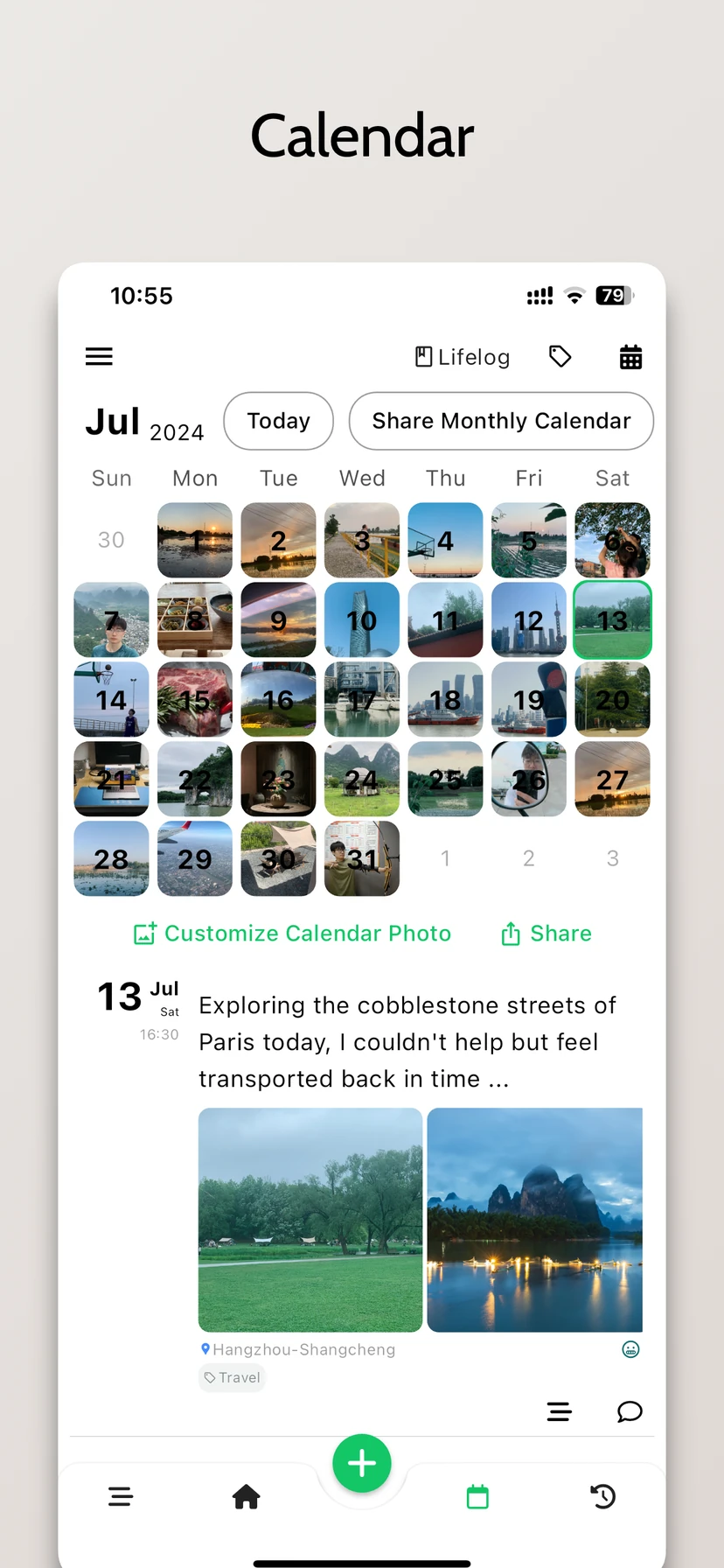
This current App Store screenshot shows the photo calendar and a saved entry for the selected day.
What You Can Do for Free
The text, ordinary photo and thread workflow above is available for free: add up to 9 ordinary photos per entry in the regular editor and create up to 3 diary threads. Manual cloud backup and full local-network transfer are also free.
Live Photos on iOS, videos, audio, media within the text, automatic backup and PDF export require membership. Members can add up to 25 photos, Live Photos and videos in total per entry. Check the app for current benefits and prices, or explore the feature guide.
For your next trip, download Lifelog Note and start with one photo entry. You can also use threads to keep a reading journal.
Download on the App Store (iPhone / iPad) · Official Android APK (Android app name: 人生笔记Real)